

Do Smart Shades Work With Apple HomeKit? A Complete RYSE Guide

If your home runs on Apple, one question decides whether a smart shade is worth buying: does it actually work with Apple Home? The good news is that RYSE integrates with Apple HomeKit, so you can ask Siri to open the bedroom shades, add them to your morning automations, and control everything from the same Apple Home app you already use. Here's exactly how it works, what you need, and how to set it up.
The Short Answer
Yes. RYSE SmartShade and SmartCurtain work with Apple HomeKit, but through one important piece: the RYSE SmartBridge. On their own, RYSE devices connect to your phone over Bluetooth for app and on-device control. Add the SmartBridge, and they join your Wi-Fi network and unlock Apple Home, Siri voice control, and cloud-based automation. If HomeKit matters to you, the SmartBridge isn't optional. It's the piece that makes it possible.
Why Apple HomeKit Compatibility Matters
Apple Home is the hub that ties an Apple-centric smart home together. When your window coverings live inside it, a few things become effortless:
- Control shades and curtains with your voice through Siri, on your iPhone, iPad, Apple Watch, or HomePod.
- Fold them into scenes, such as a “Good Morning” scene that raises the shades, turns on the lights, and starts the coffee at once.
- Trigger automations by time of day, sunrise, sunset, or when you arrive home.
- Keep one app for everything, instead of juggling a separate app per device.
Do You Need to Buy an Apple Home Hub?
Here's a point that saves a lot of people money: most newer iPhones and iPads come with the Apple Home app already installed. That means many iPhone and iPad users can get started controlling their RYSE shades in Apple Home without buying any additional Apple Home hub. If you later want to run automations or control your shades while you're away from home, a dedicated home hub like a HomePod or Apple TV adds that always-on remote access, but you don't need one just to begin.
How RYSE Works With Apple Home
RYSE is built around retrofit automation, so you keep the shades and curtains you already own and add a motor. Here's how each piece fits into an Apple HomeKit setup.
RYSE SmartShade
SmartShade motorizes your existing beaded-chain shades, including roller, zebra, and solar shades. It installs in minutes with no drilling required. Paired with the SmartBridge, it appears in Apple Home as a controllable accessory you can open, close, and automate with Siri.
RYSE SmartCurtain
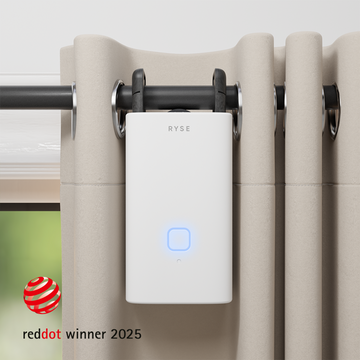
SmartCurtain does the same for standard rod curtains, mounting directly onto the rod with no tools. Once it's on your Wi-Fi via the SmartBridge, it joins the same Apple Home scenes and automations as the rest of your accessories.
RYSE SmartBridge
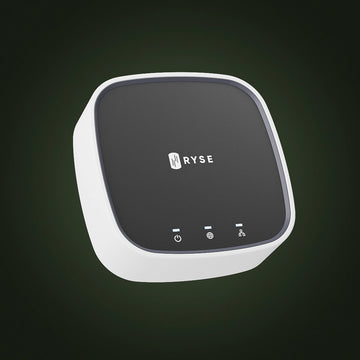
The SmartBridge is the key. It connects your RYSE devices to your Wi-Fi network and bridges them into Apple Home, Alexa, and Google Home alike. Without it, you get reliable Bluetooth app control. With it, you get Siri, remote access from anywhere, and full automation.
RYSE and Apple HomeKit at a Glance
Setup |
Apple HomeKit / Siri |
Remote Access |
Automations & Schedules |
SmartShade or SmartCurtain alone (Bluetooth) |
No |
No |
No |
SmartShade or SmartCurtain + SmartBridge |
Yes |
Yes |
Yes |
How to Connect RYSE to the Apple Home App
Before you start, make sure you've downloaded the RYSE app and have your SmartBridge on hand. Setup depends slightly on which SmartBridge model you have, and the model number is printed on the bottom of the device:
- If your SmartBridge is model BR-0201, you can pair it with the Apple Home app as your first setup step.
- If your SmartBridge is model BR-0101, set it up in the RYSE app and add your SmartShades to the SmartBridge first, before adding it to HomeKit.
From there, the connection is quick:
- Open the Apple Home app and tap “Add Accessory.”
- Scan the QR code on the bottom of your SmartBridge, then tap “Add to Home.”
- Assign a room for the SmartBridge and give it a name.
- Add each SmartShade connected to the Bridge, assigning a room for each one. The name you gave each shade in the RYSE app carries over as its default name in the Home app.
- Tap “Done.” Your shades now appear in the Home app, ready for Siri and scenes. If you don't see them under Favorite Accessories, check the “Rooms” dashboard.
For the full step-by-step walkthrough with screenshots and a setup video, see RYSE's support guide: Connecting SmartShade to the Home App (HomeKit).
Why RYSE Is a Top Choice for HomeKit Window Automation
Most smart shades that promise HomeKit support ask you to replace your window coverings entirely. RYSE doesn't. It automates what you already own, installs without tools or an electrician, and with the SmartBridge, drops cleanly into Apple Home alongside your lights, locks, and thermostat. It's the simplest way to bring your existing shades and curtains into an Apple smart home. Explore the full RYSE lineup to build the setup that fits your windows.
Share with your community!
In this article
Sign up for our newsletter
Latest from experts

Does the RYSE SmartShade Work With SmartThings? Z-Wave Pairing, Explained

How Many Smart Shades Can One RYSE SmartBridge Control? Planning a Whole-Home Setup
